
|

How does the scan on publish feature work?
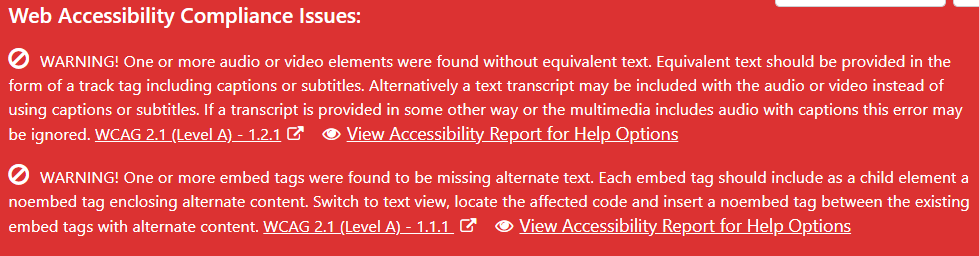
Error prompt on Classic Editor screen

Depending on your settings the plugin will check content for issues when they are published or updated and you will be prompted with a list of issues that were found.

  1. Click on the “View Accessibility Report for Help Options” to see a full report of issues found and to view the effected code.
  2. Refer to the help section, view code and reference material to gain a better understanding.
  3. Some issues may not require correction, if that is the case, choose “Ignore” and “This Error”. 
  4. To correct an issue, close the report window which will return you to the editor screen where you can make the necessary changes.


Similar Posts

  • Using Simple History to troubleshoot plugin errors

    If you are experiencing issues during license key activation or server errors caused by the WP ADA Compliance plugin complete the following steps before contacting us for support: Install the free Simple History plugin Complete the steps that are know to cause the issues From your WordPress dashboard, select Home > Simple History In the…

  • How do I mark a table or image as presentation only.

    Tables and images used for presentation only should include a “role” attribute set to ”presentation”.  Alternatively images may include an “alt” attribute that is empty. The WP ADA Compliance plugin adds a “Format” selector to the WordPress Classic Editor or classic block allowing you to mark the table or image as either a “Presentation Table”…

  • |

    Accessibility Testing with the WP ADA Compliance Check Plugin

    WP ADA Compliance Check is a powerful accessibility testing tool that evaluates websites against WCAG 2.2 Level A, AA and Section 508 standards. It includes more than 8o individual error checks and automatically corrects 28 error types. Conducting Accessibility Testing with WP ADA Compliance Check Using the WP ADA Compliance Check  plugin is relativly easy…

  • |

    How can I translate the WP ADA Compliance Check plugin

    Our plugins are configured to use WordPress Translation and a Poedit (POT) file has been provided to facilitate translation to the desired language.  Complete the following steps to translate your website: Download the free Poedit editor  Find the provided PO file in the languages folder of the wp-ada-compliance archive Open wp-ada-compliance-en_EN.po using Poedit Choose “Create…

Accessibility Tools
hide